UI Slide layouts for eLearning
Creating visually engaging, polished, and user-friendly online courses requires more than just dropping text onto blank slides. Designing your user interface (UI) screens in Adobe Illustrator prior to building in authoring tools like Articulate Storyline, Adobe Captivate, PowerPoint, or Canva ensures design consistency, speeds up stakeholder approvals, and streamlines your overall development workflow.
In this guide, we walk through the exact step-by-step UI workflow and layout principles used to build professional, publish-ready eLearning slide suites.
Why Design UI Layouts in Adobe Illustrator First?
Building directly in authoring software often leads to repetitive adjustments, layout clutter, and inconsistent branding. By designing your slide suite in Illustrator first, you establish a clear visual framework and master layout system.
Time & Stakeholder Management: Get client or stakeholder approval on full visual storyboards and UI components before committing time to complex trigger programming in Storyline.
Brand Consistency: Centralise your color palettes, typography systems, and graphic assets across every screen type.
Reusable Design Systems: Easily export high-resolution assets, icon sets, and layout templates for future project rollouts.
💡 Pro Design Tip: Typeface Selection
For modern corporate eLearning templates, choose clean, accessible fonts like Inter (available free via Google Fonts). Inter offers excellent screen readability and matches default font stacks in authoring environments like Articulate Storyline.
Core Components of a Professional eLearning UI System
1. Master Chrome & Navigation UI
Maintain consistent anchor points throughout your course so learners always know where to look:
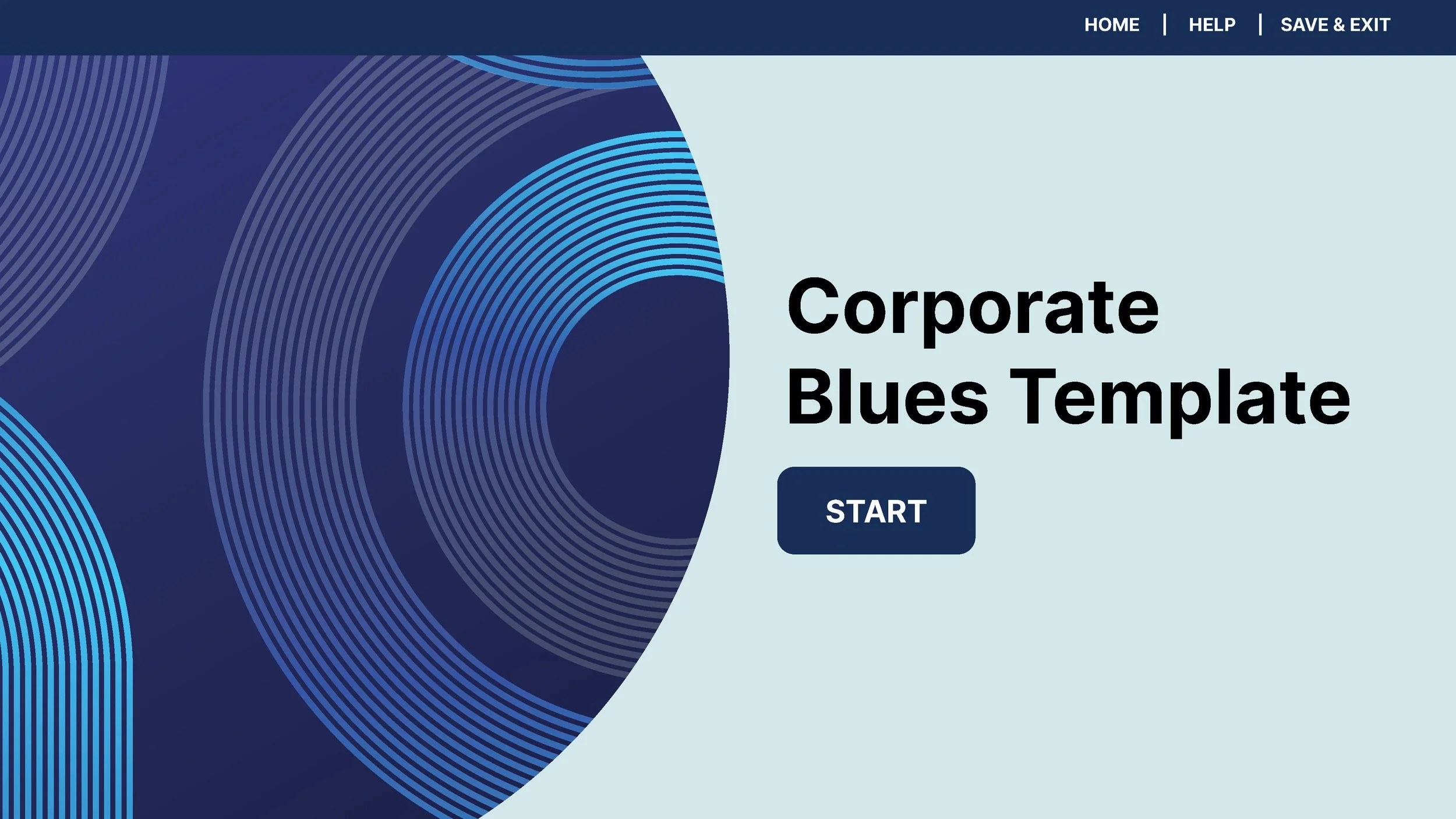
Header & Navigation Bar: Clean top-bar navigation featuring direct links for Home, Help, and Save & Exit.
Footer Anchor & Branding: Move company logos into consistent subtle locations (e.g., bottom center) alongside standardised Previous and Next controls.
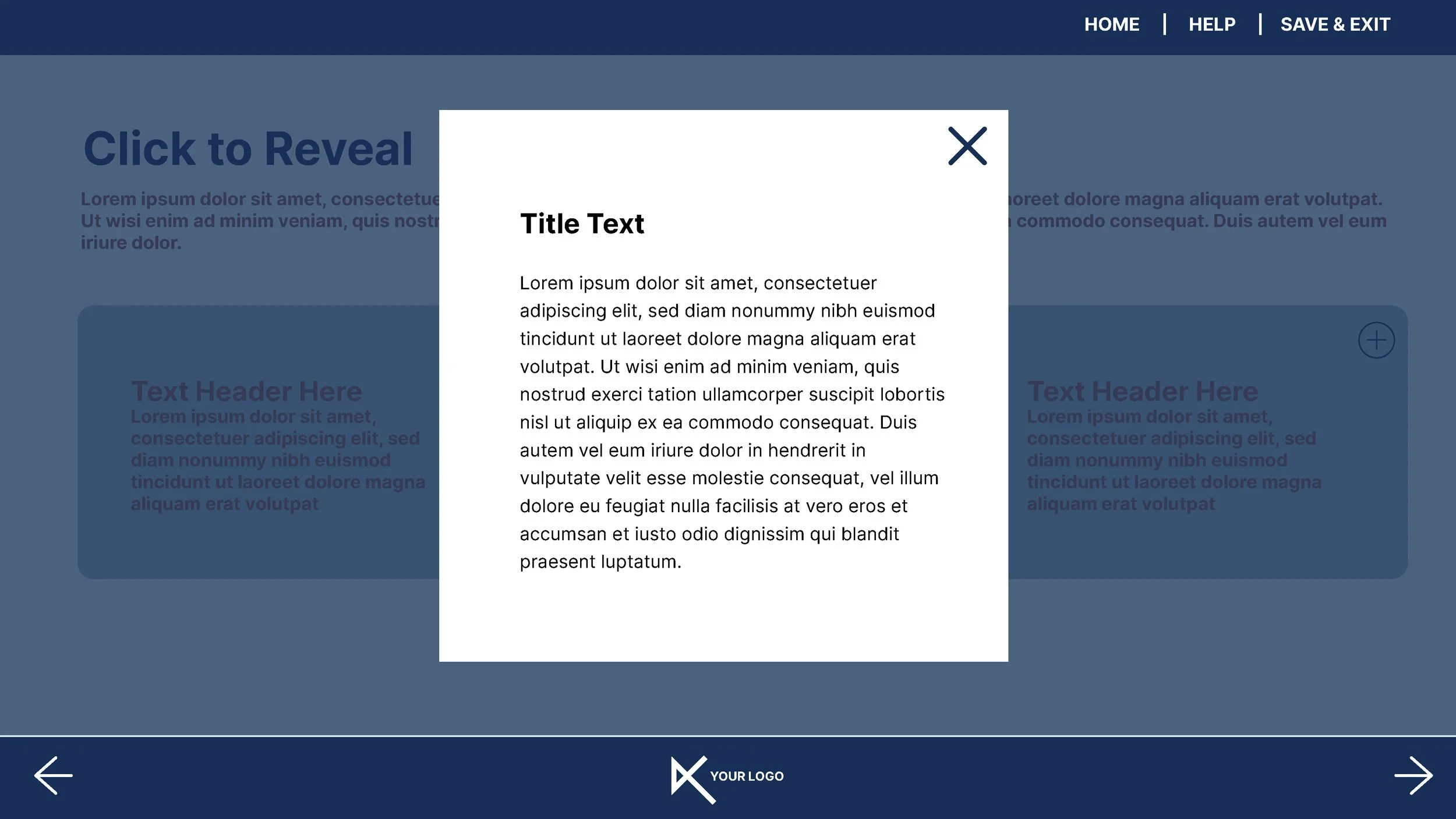
Global Overlay Help Screen: Create a dedicated semi-transparent modal overlay that educates users on navigation controls whenever the Help button is clicked.

2. Topic Menus & Custom Progress Lock States
A customised course menu provides visual structure while guiding learner progression:
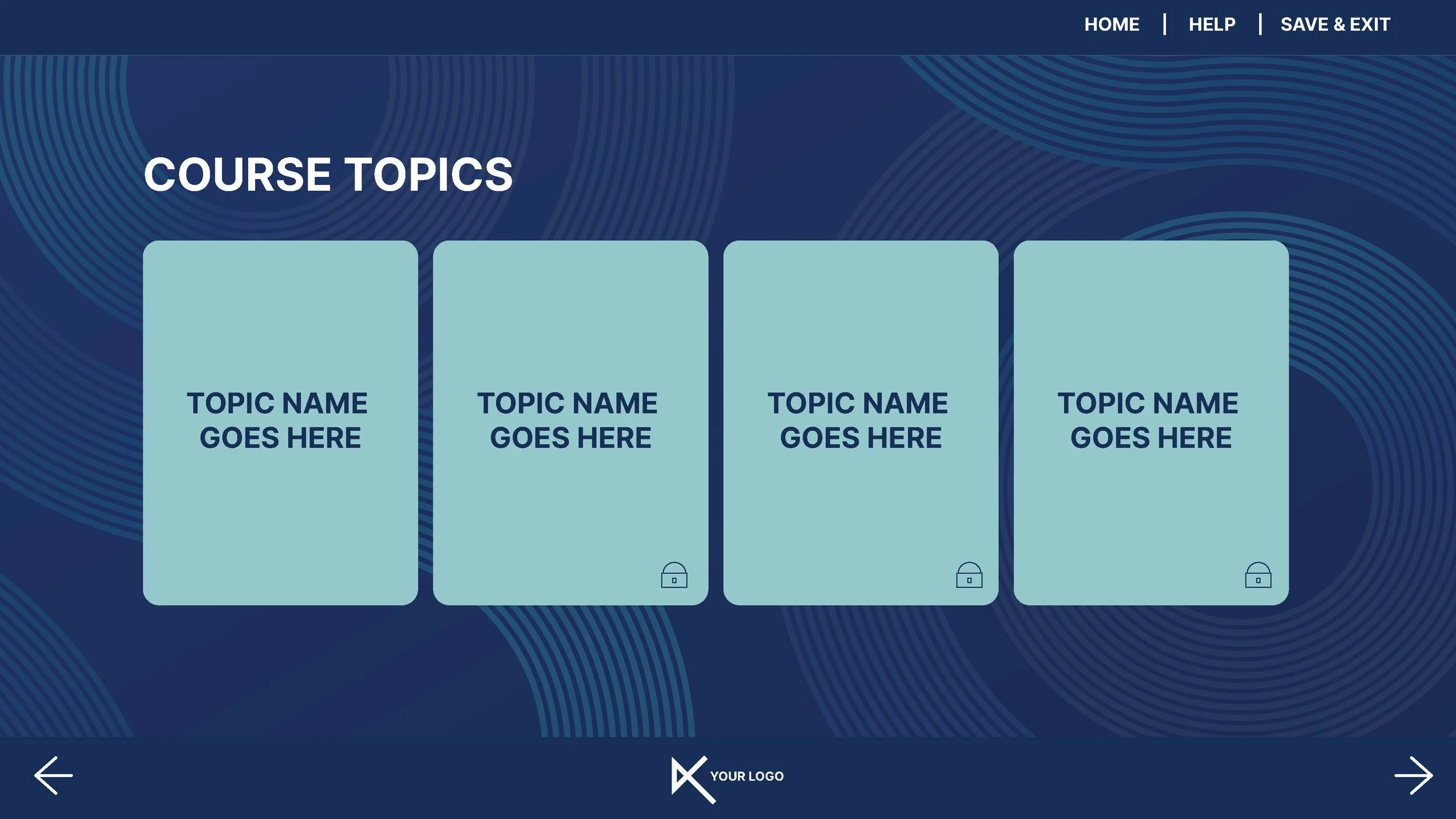
Topic Cards: Group core modules into clean, rounded content blocks.
Visual Lock Icons: Indicate restricted navigation using subtle lock icons on topic cards. In Storyline, these states automatically unlock (or change to completion checkmarks) once the corresponding topic variables evaluate to ‘true’.
Essential Interactive Slide Layouts
-
Place numbered or pulsing hotspot markers over office or scene photos. Hovering or clicking triggers darkened background overlays with focused content popup cards.
-
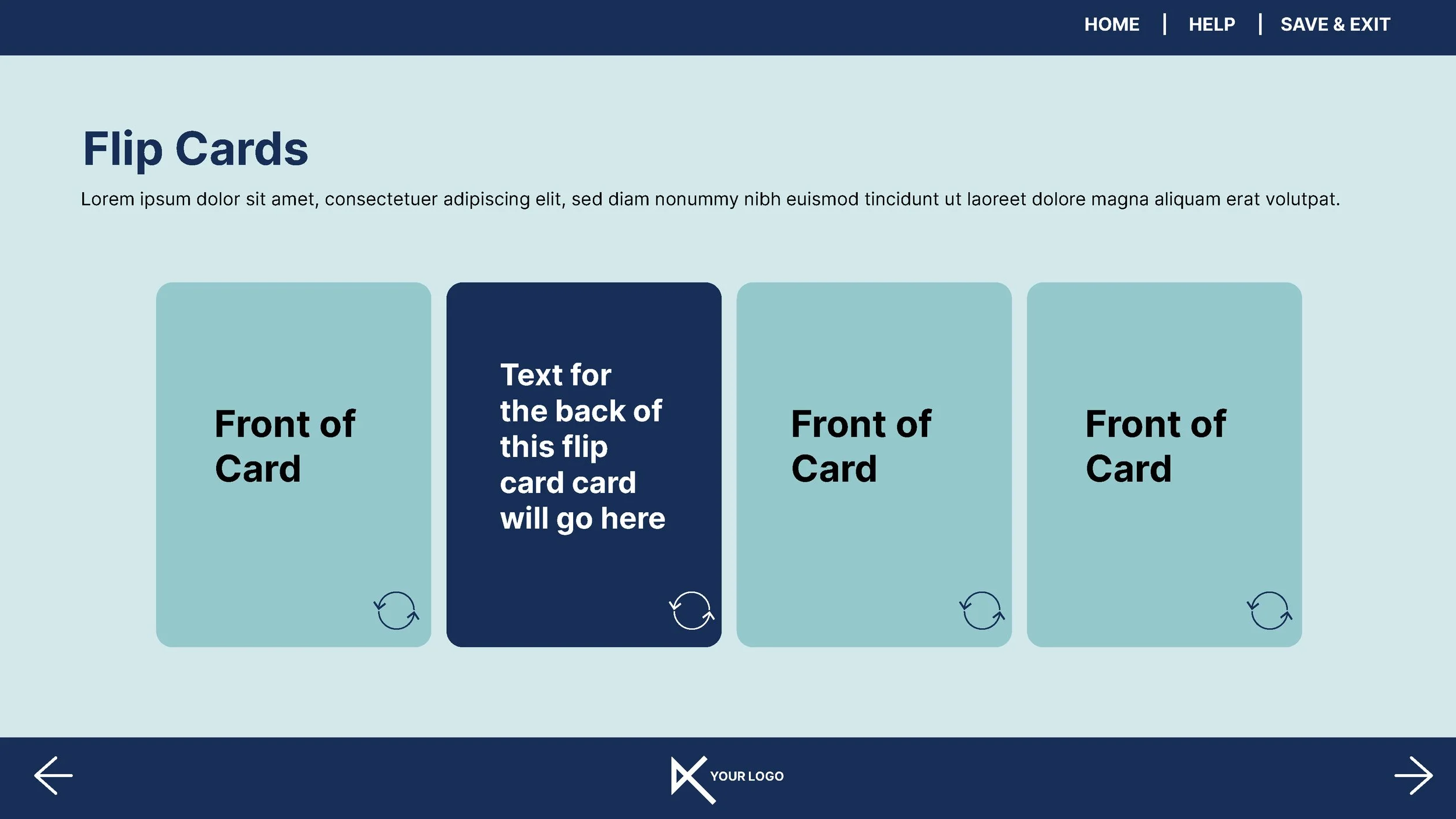
Great for quick knowledge bites. Design clear front-of-card states with visual "flip me" indicators, and contrasting dark-mode back states for answers or details.
-
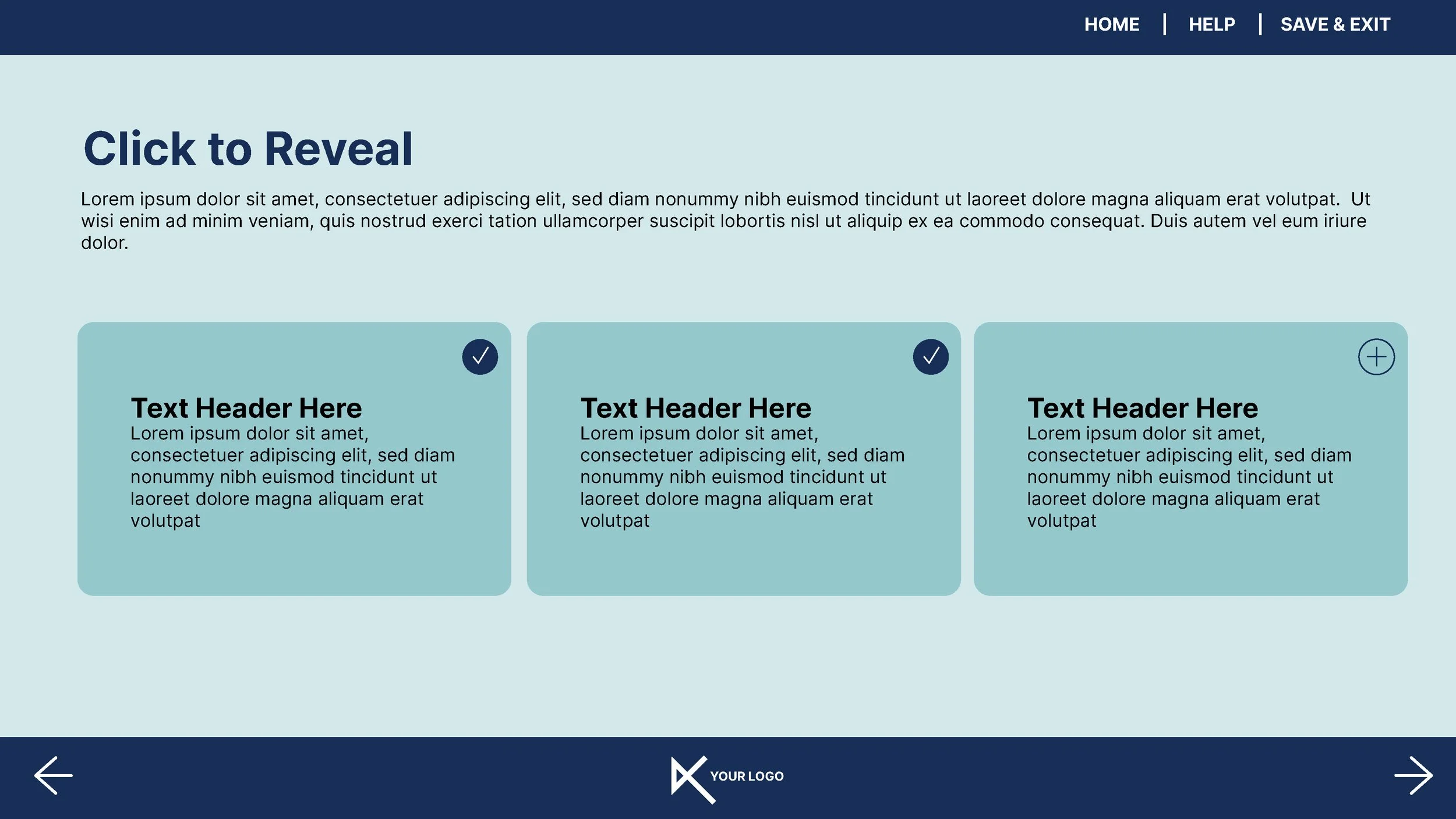
Present info in structured 3-column cards with embedded status indicators (such as plus icons turning into completion checkmarks upon viewing).
-
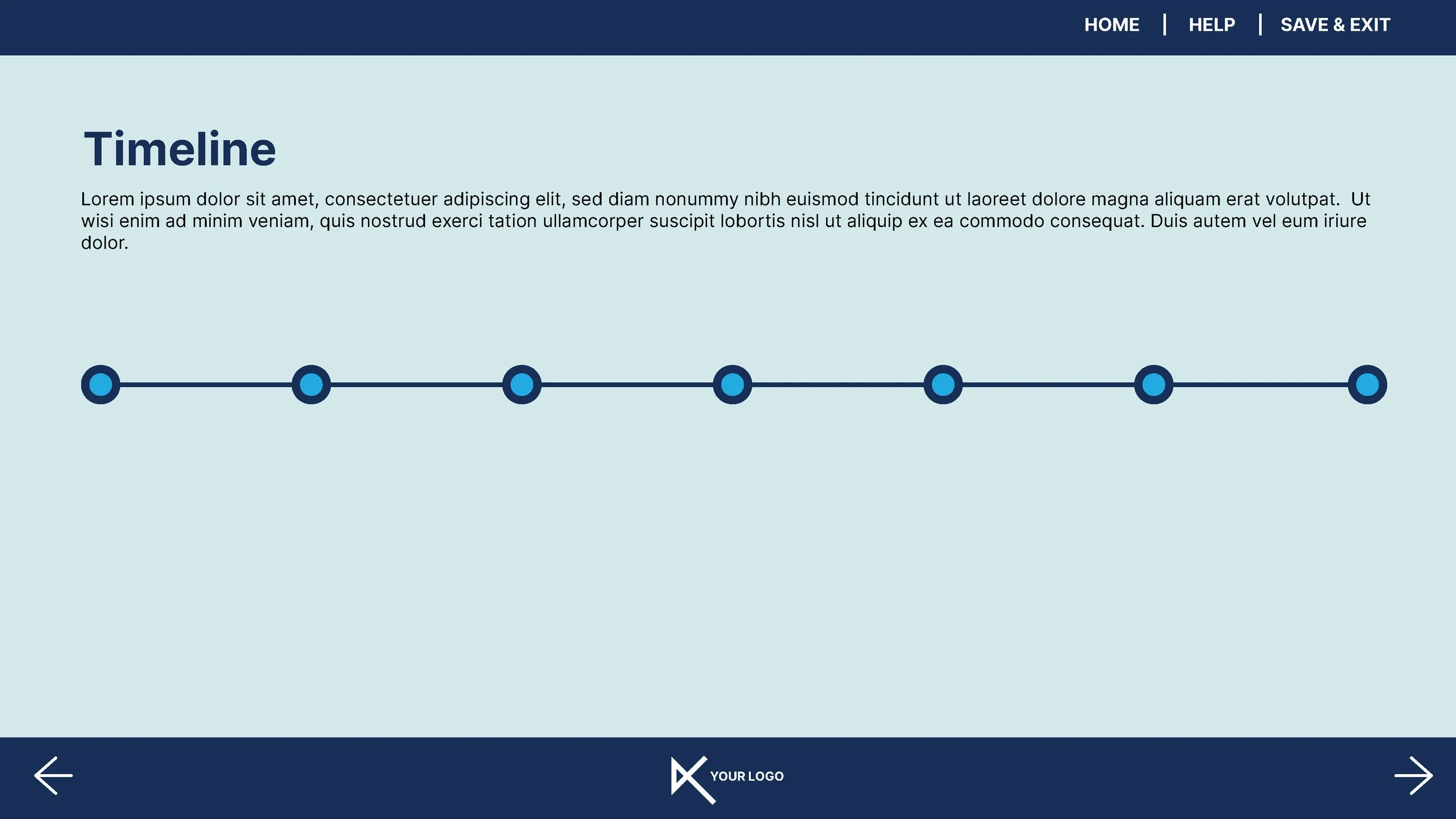
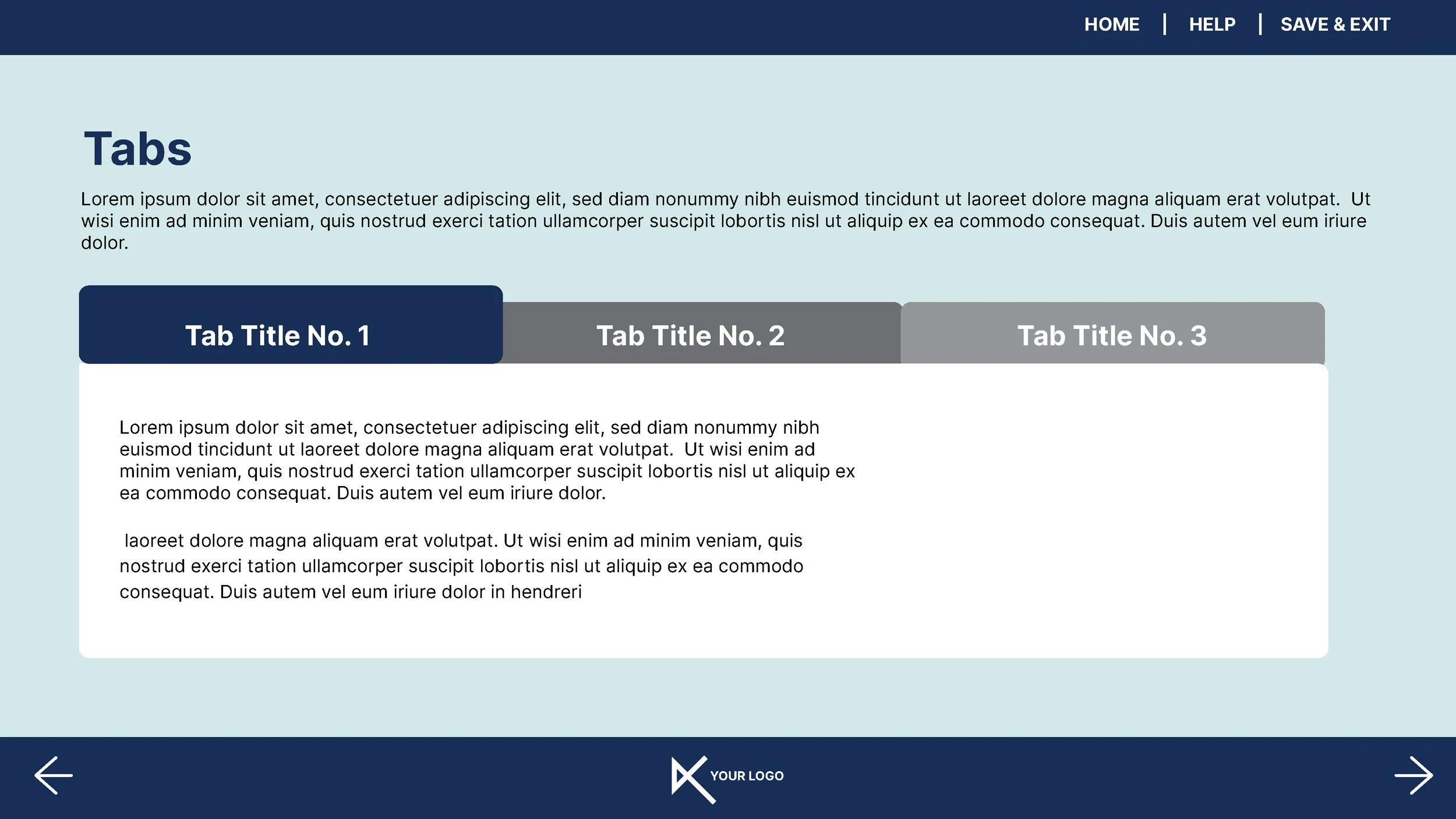
Chunk dense information using horizontal node timelines or tabbed containers, preventing slide text overload and encouraging active learning.
Designing Assessment & Completion Screens
Assessment screens should feel integrated with the rest of the course aesthetic rather than like default, unstyled form fields:
Single-Choice (MCQ) & Multiple-Response Screens: Style radio buttons and checkboxes to match your brand palette, accompanied by consistent Submit buttons.
Feedback Modals: Design distinct Correct! (green tick accent) and Incorrect / Try Again states that clearly communicate performance.
Conclusion & Resource Slides: Provide clear final completion triggers, LMS exit buttons, and dedicated links to downloadable PDFs or intranet resources.
Watch the Full Video Tutorial
Want to see how these layouts are constructed step-by-step? Watch our full video tutorial on YouTube: eLearning UI Design Workflow: From Illustrator to Storyline and don't forget to subscribe to BoldeLearning for more instructional design tips and tricks!