Transform Static Documents into Digital Learning
From Word Document to eLearning
From "Wall of Text" to Wow: Turning Word Docs into Interactive Scenarios
We’ve all been there: you’re handed a 40-page Word document filled with essential—but dry—compliance or technical training. Your mission? Don’t just make it digital; make it engaging.
Instructional design can transition content from static, linear text to a click-to-reveal hotspot scenario in Articulate Storyline or Rise. Here is how you can take your raw content and breathe life into it.
1. Static to Striking
The first step in "bringing content to life" is visual storytelling. Instead of listing bullet points about a workplace environment, use a high-impact, full-screen image that represents the learner's actual world.
By overlaying hotspots, you transform a passive reading task into an active exploration. Learners aren't just reading about a process; they are "touching" the environment to uncover information.
2. The Power of a ‘Click-to-Reveal’
Why use a click-to-reveal scenario?
Cognitive Load: It breaks down complex information into digestible "micro-moments."
Curiosity: It taps into the learner's natural urge to explore.
Context: Information is placed exactly where it’s relevant in the image, making it easier to remember.
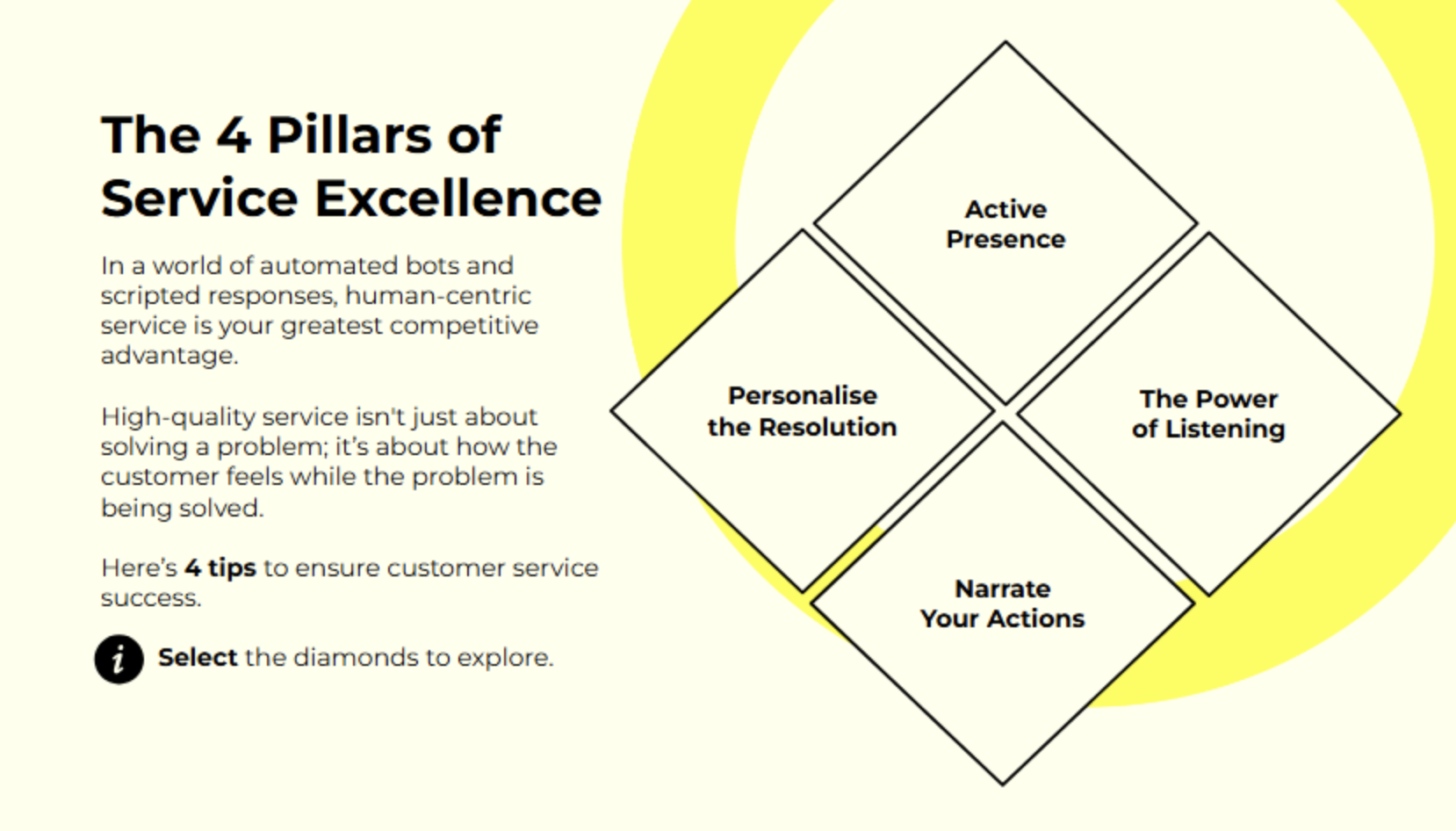
Click to reveal landing page - each diamond reveals a pop-up.

Hot Spot click-to-reveal, each hot spot reveals a pop up and is marked as ‘ticked’ once clicked.
3. Ensuring Interaction Sticks
One of the most common requests from stakeholders is: "How do we make sure they actually look at everything?"
In Articulate Storyline, you can easily add a layer of gamified "gatekeeping." By using Variables or State-based Triggers, you can keep the "Next" button disabled or hidden until the learner has interacted with every single hotspot. This ensures:
No mindless clicking: Learners must engage with the material to progress.
Verified Exposure: You can confidently report that every learner was exposed to the key interactive elements of the slide.
4. Remove the ‘Wall of Text’
Ideally, each reveal should contain between 25 and 50 words.
Why: This fits comfortably in a standard-sized caption box without requiring a scroll bar.
The Feel: It should feel like a "pro-tip" or a quick insight, not a textbook chapter.
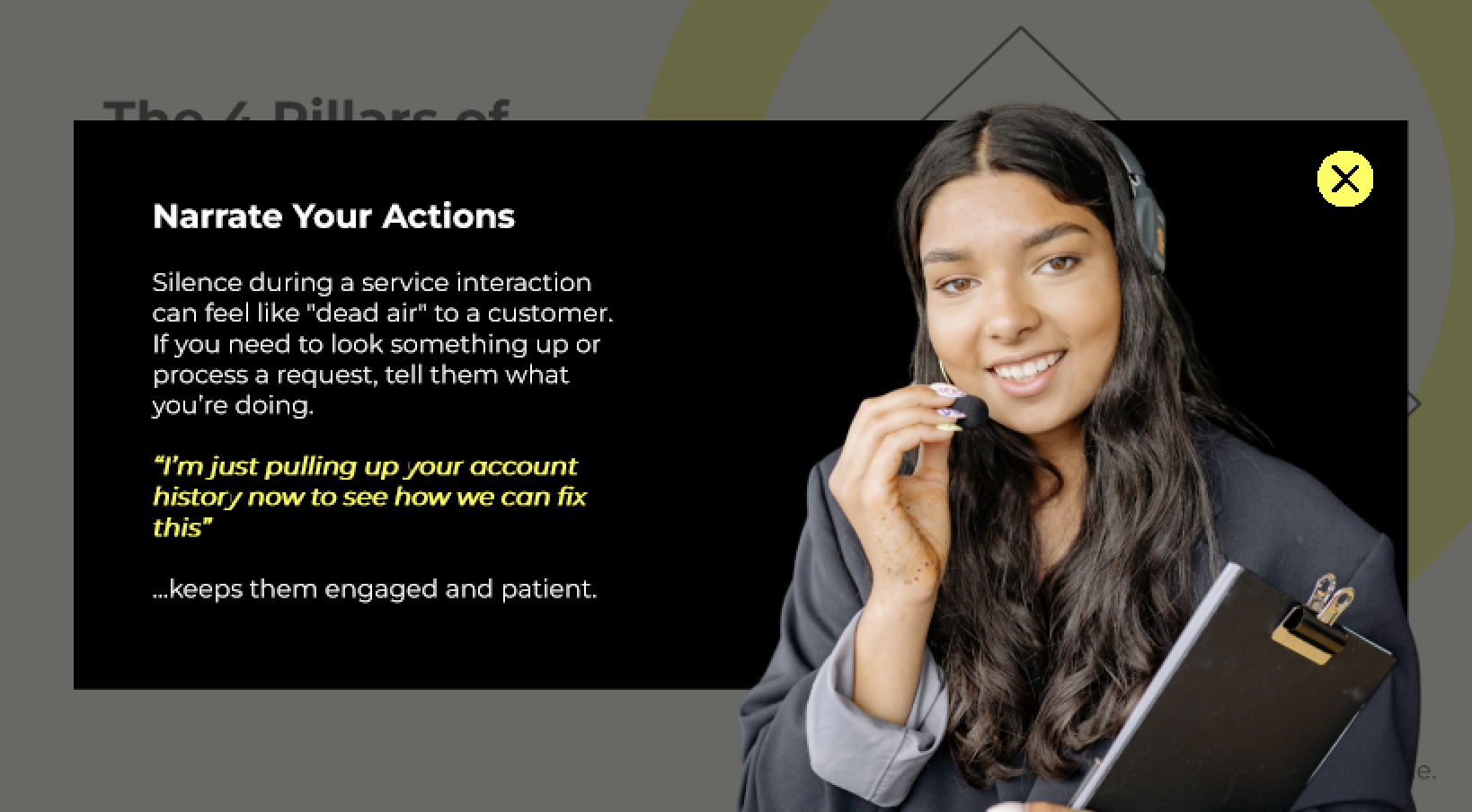
Click to reveal pop-up with hero image to the right and content to the left. Close button situated top right of the screen.
5. The 3-Second Rule
A learner should be able to scan and digest the text in the revealed area in under 3 seconds. If it takes longer, the flow of the interaction (the "click-click-click" rhythm) is broken, and it starts to feel like a chore.
Ready to level up your training?
Moving from Word or PowerPoint to Storyline isn't just about changing the format - it's about changing the experience. By using striking imagery and purposeful interaction, you turn required reading into an immersive discovery.
🔎 Book a FREE discovery call with the team at Bolde Learning to see how we can help you transform your learning material.
Check out our PowerPoint Template Library here.