Toggle Accessibility Visibility in Storyline
Articulate Storyline Update: Toggle Accessibility Visibility
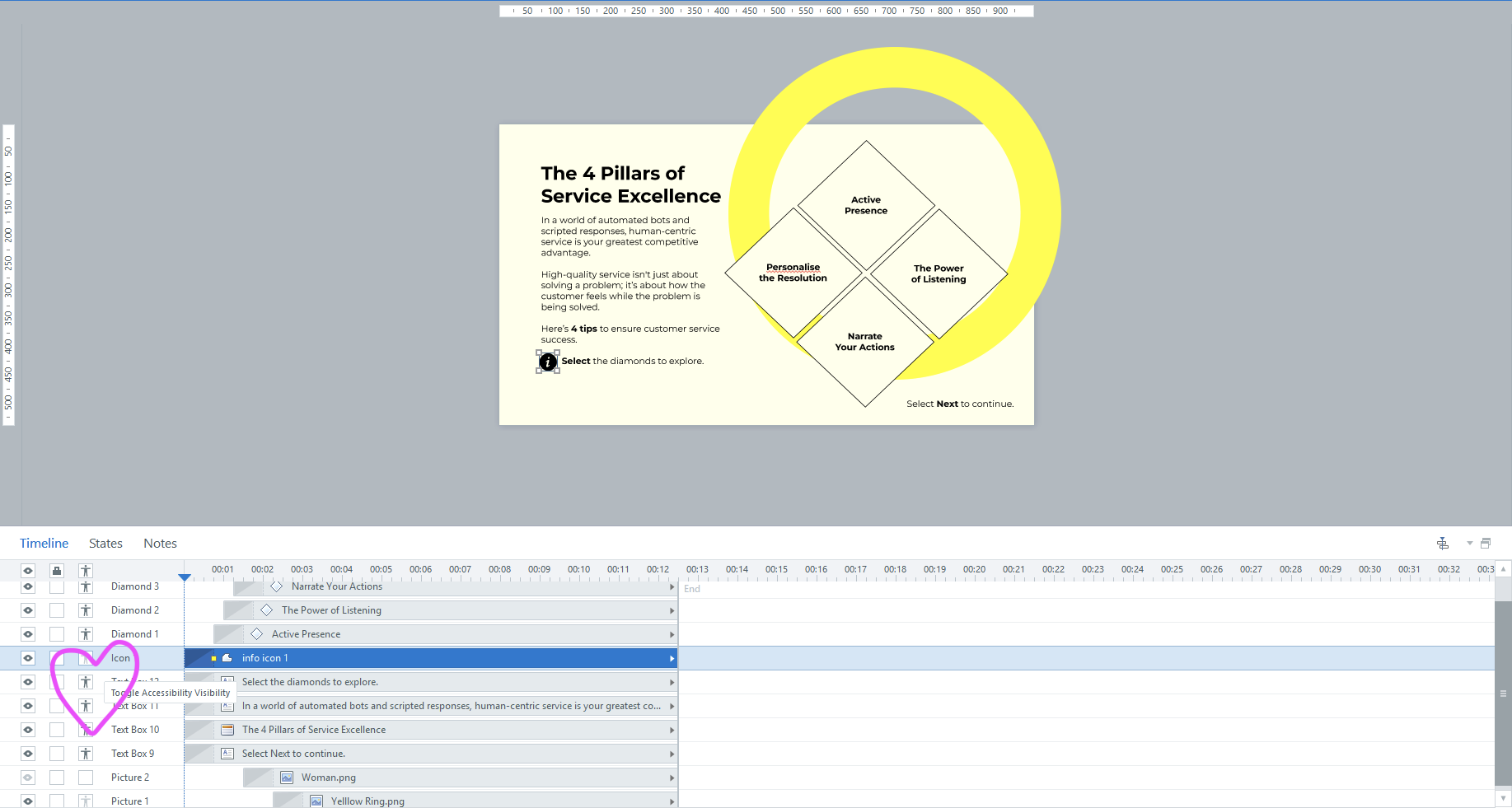
On April 14 (Build 3.115.36688.0), Articulate introduced a new accessibility toggle workflow in Storyline 360 that is going to save us a serious amount of right-click fatigue.
In the fast-paced world of instructional design, accessibility has often felt like a "final coat of paint"—something we check at the end of a project, only to realize we have to backtrack and fix dozens of objects.
Articulate’s recent update to the Storyline 360 Timeline changes the game. By introducing the Toggle Accessibility Visibility icon directly into the timeline (right next to the familiar "eye" and "lock" icons), they’ve moved accessibility from a hidden menu to the forefront of our creative process.
Here’s why this small icon is a massive win for your workflow.
1. No More "Menu Diving"
Before this update, if you wanted to hide a decorative image or a redundant text box from screen readers, you had to right-click the object, select Accessibility, and uncheck ‘Object is visible to accessibility tools.’
Now, it’s a single click.
You can now audit a slide’s accessibility in seconds. Just glance down your timeline: if an object shouldn't be read by a screen reader, click the person-shaped icon. Done!
2. Visual Clarity at a Glance
The new column in the timeline provides a high-level view of what a screen reader will actually see.
For example, if you have a slide with 20 objects but only 5 are essential for the learner's understanding, you can quickly see if you’ve forgotten to hide the other 15. This visual map prevents the "information overload" that screen reader users often face when designers leave decorative shapes and lines ‘visible.’
3. Parallel Development
Typically, designers build the visual layer first and the accessibility layer last. The accessibility toggle encourages parallel development.
As you drop a background image onto the slide, you can immediately toggle its accessibility off. You're building an inclusive experience in real-time, rather than adding a "correction phase" to the end of your project timeline.
4. Better Collaboration
If you’re working in a team, the accessibility toggle acts as a clear signal to your colleagues. When a developer opens your file, they don’t have to wonder which items you intended to be decorative. The timeline tells the story for them, reducing errors and ensuring consistency across multi-author projects.
Pro-Tip: The "Master Toggle"
Just like the ‘Hide All’ eye icon at the top of the timeline, you can use the Global Accessibility Toggle at the top of the column to show or hide all slide objects from screen readers at once. This is incredibly useful for complex slides where you want to "reset" the focus and only enable the most critical elements one by one.
Accessibility isn't a feature; it's a right. By bringing these controls into the primary workspace, Storyline is helping us all build better, more inclusive learning experiences without slowing down our creative flow.